
 Additional settings for Safari Browser.


ParentSquare
ParentSquare Communication System
The Ross Local School District uses ParentSquare as our primary school-to-home communication platform, delivering timely updates through email, text, and app notifications. ParentSquare automatically creates an account for each parent/guardian using the contact information we have on file. We encourage families to activate their accounts, download the mobile app, and customize their notification preferences.
With ParentSquare, you can:
• Receive messages from your child’s school via email, text, or app notifications
• Choose instant alerts or a once-daily digest delivered each evening
• Communicate in your preferred language with built-in translation
• Access all messages, forms, events, and school updates from any device
ParentSquare helps us keep families informed, connected, and engaged—every day.
-
Download the App Today!
You can use ParentSquare on any device. You can download the free mobile app:
- For iOS: Apple Store
- For Android: Google Play Store
- Use the desktop version by visiting the ParentSquare website and logging in with your email address we have on file.
- Scan one of the QR codes:
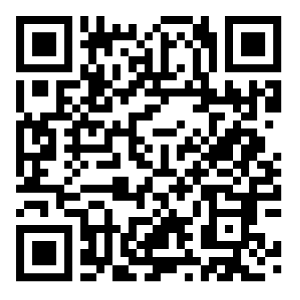
iOs - Apple Store
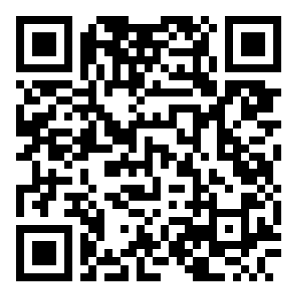
Android - Google Play Store
-
ParentSquare offers a full library of tools designed to help families get the most out of our school-to-home communication system. From step-by-step guides to video tutorials and troubleshooting tips, these resources make it easy to stay connected and informed. Click the link below to explore ParentSquare’s support center and find everything you need to confidently use the platform.
-
How do I sign up or opt in to receive messages and notifications?
You don’t need to do anything to begin receiving emails, texts, or phone calls. ParentSquare automatically creates an account using the contact information in our student information system. If you’d like to use the mobile app, simply download it from the App Store or Google Play and follow the prompts to activate your account.
Can I access communications for more than one of my students from the same account?
Yes. When you log in for the first time, you should automatically see all students associated with your contact information listed in the upper-left corner of the ParentSquare home screen. If a student is missing, please contact your child’s school so we can update your information:
-
Elda Elementary: 513-738-1972
-
Morgan Elementary: 513-738-1986
-
Ross Intermediate School: 513-868-4550
-
Ross Middle School: 513-863-1251
-
Ross High School: 513-863-1252
What are the message/alert/notification categories, and what do they mean?
You can receive communication by email, text, voice call, and/or app notification. While families may opt out of certain messaging methods, the district may override opt-outs for urgent or safety-related notifications.
All Alert messages can viewed on the website version and app under Alerts.
What types of messages will I get?
ParentSquare allows RLSD to communicate in several ways:
-
Posts: These appear in your school’s ParentSquare feed and may also be sent by text or email.
-
Direct Messages: Staff members—such as teachers, coaches, or the school nurse—may message you privately about your child.
-
Smart Alerts: These include district newsletters, reminders, and informational updates. They may be sent by text, email, or phone call.
-
Urgent Smart Alerts: These are reserved for emergencies, delays/closures, or health and safety issues. They are sent by text, email, and phone call.
My email is correct in ParentSquare. Why am I not receiving emails?
First, check your spam or junk folder and mark any ParentSquare messages as “Not Spam.” Adding donotreplay@parentsquare.com to your email contacts can also help ensure messages reach your inbox.
English is not my first language. How can I receive content in my preferred language?
ParentSquare offers automatic translation. Go to My Account, select Language under Preferences and choose your preferred language from the dropdown menu. All future communication will be delivered in that language.
I am receiving too many messages. How can I reduce notifications?
You can customize how often you receive messages. Go to My Account, select Notifications, and choose your preferred delivery options for App Notifications, Text Notifications, and Email Notifications. Many families select the Daily Digest for email and/or text, which sends one combined message each evening instead of individual notifications throughout the day. We suggest that you keep the App Notifications at Instant, and then determine notifications in Settings on your device to determine how those instant notifications show up on your device.
-
